
How to Transfer Files from iPhone to Android
Sending files between an iPhone and Android should be simple: after all, they're both modern devices with Wi-Fi hardware, both designed for sending photos, videos, and documents.
But some some reason it’s rarely smooth, often confusing, and often fails outright. Until now, the only way around it has been awkward fixes that involve configuring your device or network, or downloading yet another app you might only use once.
The real solution is xosend: a browser-based tool that makes it easy to send photos, videos and documents easily to any device, anywhere. Its free and you don't even need an account.
For the easiest way to transfer files between iPhone and Android, use xosend.
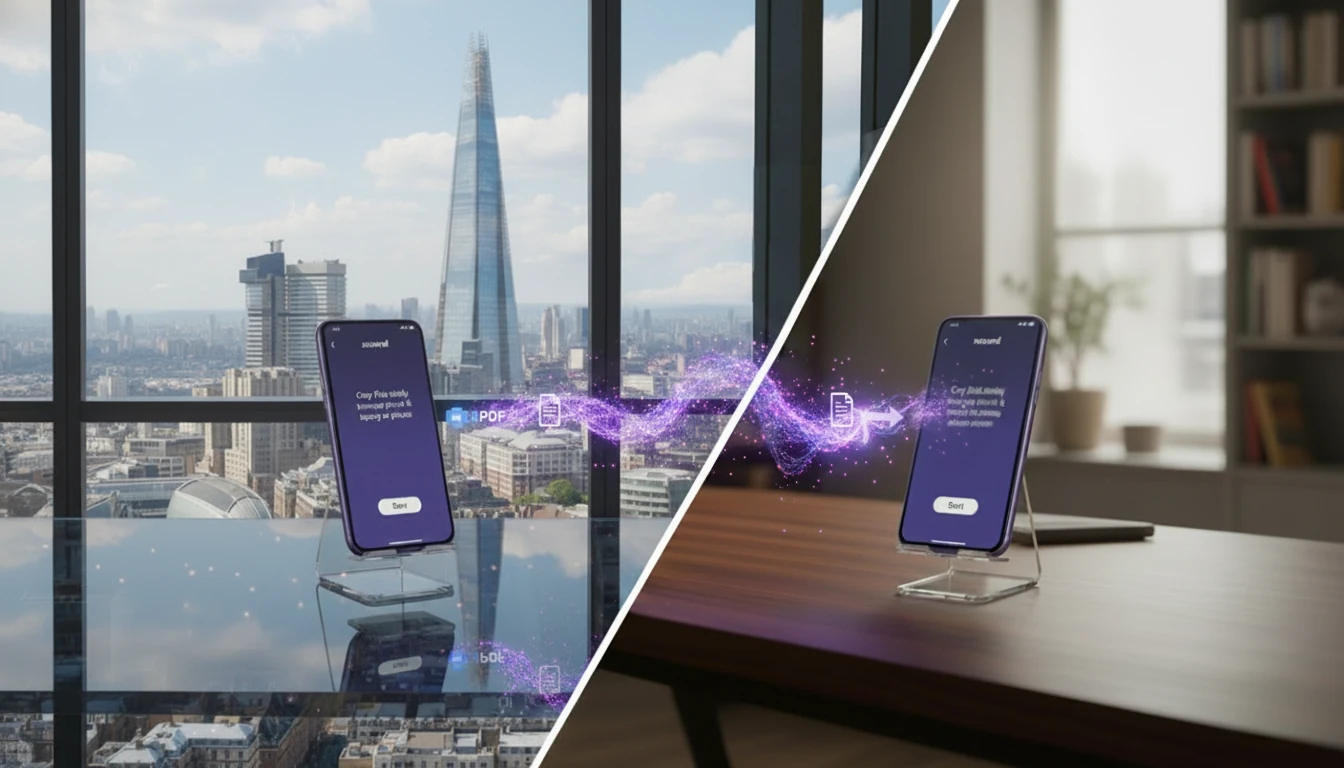 Let's look a little closer at why xosend solves the irritating problems that typically arise when trying to send files between devices on different platforms, like iPhones and Android.
iOS–Android mismatch issues
- No universal standard — In most cases AirDrop and Quick Share don’t communicate, so there’s no single cross-platform “tap to send” method.
- Compression problems — Messaging apps downscale photos and videos, reducing quality unless you use manual workarounds.
- File-type incompatibility — Certain formats or app-specific files won’t open without converting or installing extra apps.
- Bluetooth/Wi-Fi quirks — Peer-to-peer transfers fail if radios, visibility, or hotspot settings aren’t configured correctly.
- File size limits — Email caps around 25MB and many messaging apps block large videos or archives entirely.
- iOS sandboxing friction — iOS restricts app file access, making some transfers awkward or multi-step.
- Codec and player differences — Videos or audio may not play correctly because each platform defaults to different formats.
Why these issues happen
We expect file sharing to be simple: pick a file, pick a device, hit send. That rarely works across phones and apps — the convenience of one-tap sharing vanishes when platforms, apps, or settings get in the way.
- The Platform Divide: Android to iOS transfers have recently been introduced. But the process isn't very convenient and since it's only available on a limited range of flagship devices it still doesn't work for most people. It's partly because both apps use their own discovery protocol and peer-to-peer Wi-Fi setup, so an iPhone can’t “see” an Android phone for one-tap sending. That means people still fall back to cloud links, email, or third-party tools.
- Automatic Compression: Many messaging apps automatically downscale photos and videos to save bandwidth. Unless you explicitly choose “Send as document,” the recipient often gets a noticeably softer, lower-resolution file.
- Codec and File-type Mismatch: iPhones default to HEVC/HEIF for video and images while many Android phones prefer H.264/MP4. Both platforms can support the other formats, but app and player compatibility varies, so a clip that plays instantly on one device may need a different player on the other.
- Connectivity Quirks: Local transfers rely on Bluetooth for discovery and Wi-Fi Direct for data. If either radio is off, restricted, or hijacked by a hotspot, the transfer may never start — which is why “it just won’t send” is such a common complaint.
- File Size Limits: Email’s 25MB cap and smaller limits in many messaging apps block long videos, RAW photos, or zipped folders. Large files simply won’t go through without a different method.
- iOS Sandboxing: Apple’s strict app-storage model prevents apps from freely browsing the file system. Even when a transfer succeeds, you may need to manually “Save to Files,” pick a folder, or grant permissions repeatedly.
Here are some more ways to quickly send files online.
How xosend solves these problems
- It's Universal: It doesn’t matter whether you’re on iPhone or Android — it works the same for every device.
- Full Quality Transfers: No unwanted compression means your files stay full quality.
- Send the Exact Files: No file-type guessing, so the recipient gets the original file exactly as it is.
- No Setup Required: No setup headaches. It works over the internet, not peer-to-peer Wi-Fi.
- High Limit Caps: Its only limit is the 20-minute session cap; large videos and folders can be sent without hitting email or messaging caps.
- Direct Access via Browser: No sandboxing errors — the browser can access your chosen files directly.
Explore other ways to transfer files wirelessly between any devices.
Comparing features of xosend, AirDrop, WhatsApp and Email
| AirDrop | xosend | |||
|---|---|---|---|---|
| Works without app | ||||
| Works Online | ||||
| Universal compatibility | ||||
| No compression | ||||
| Direct connection | ||||
| Large file support | ||||
| Desktop / laptop support | ||||
| No account required | ||||
| Browser based |
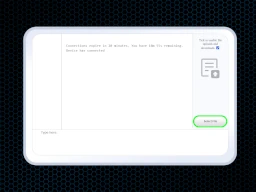
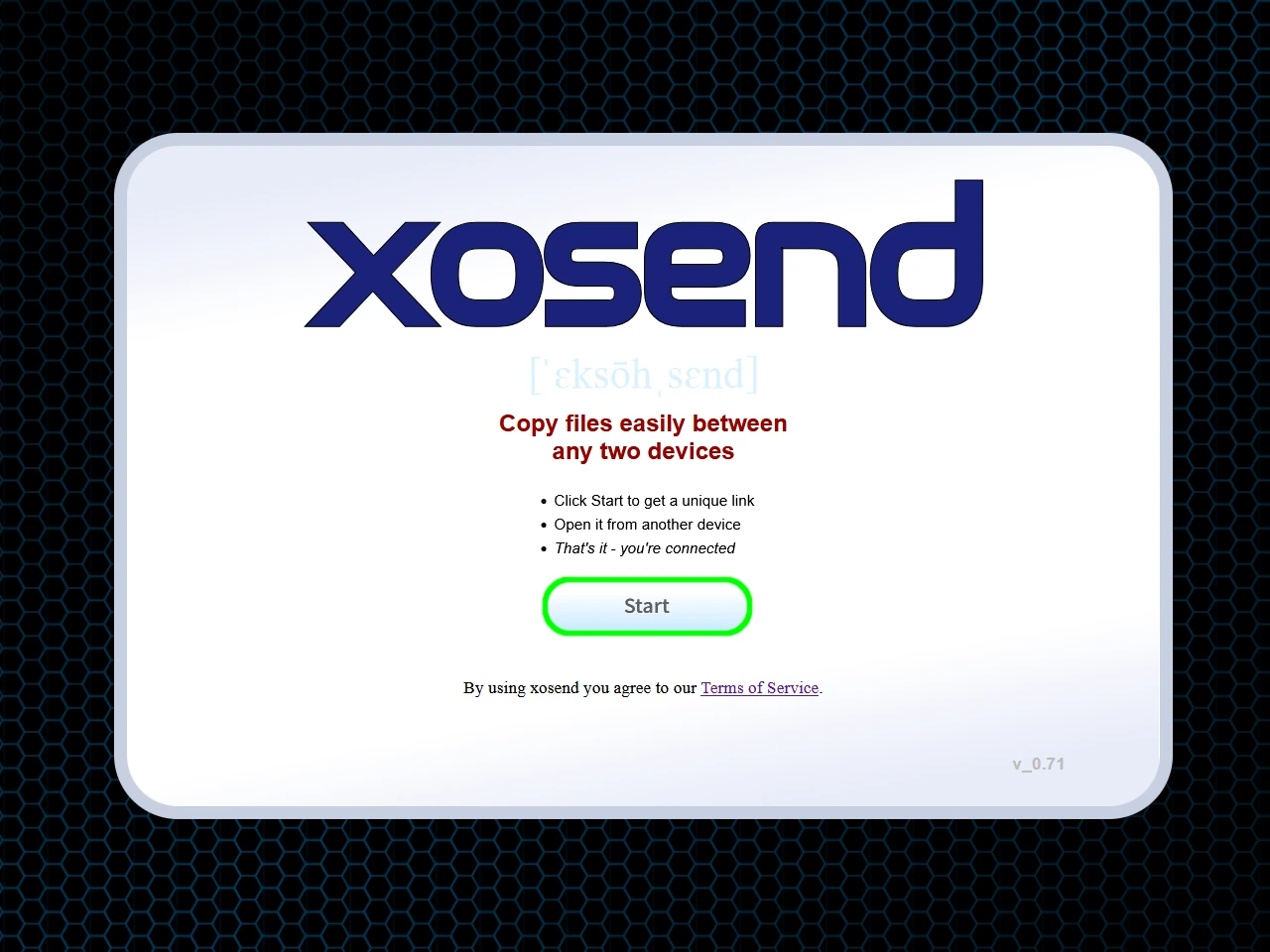
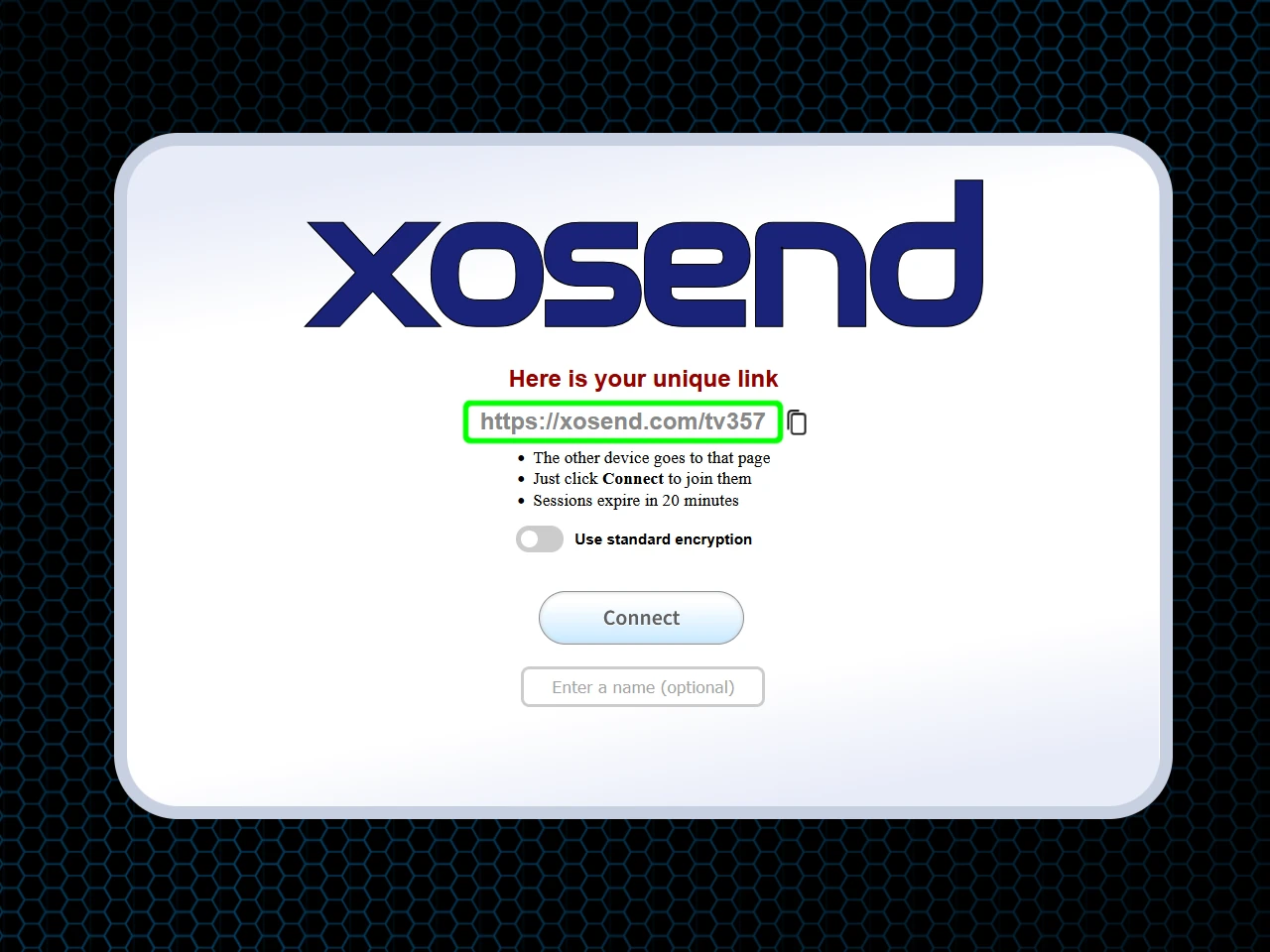
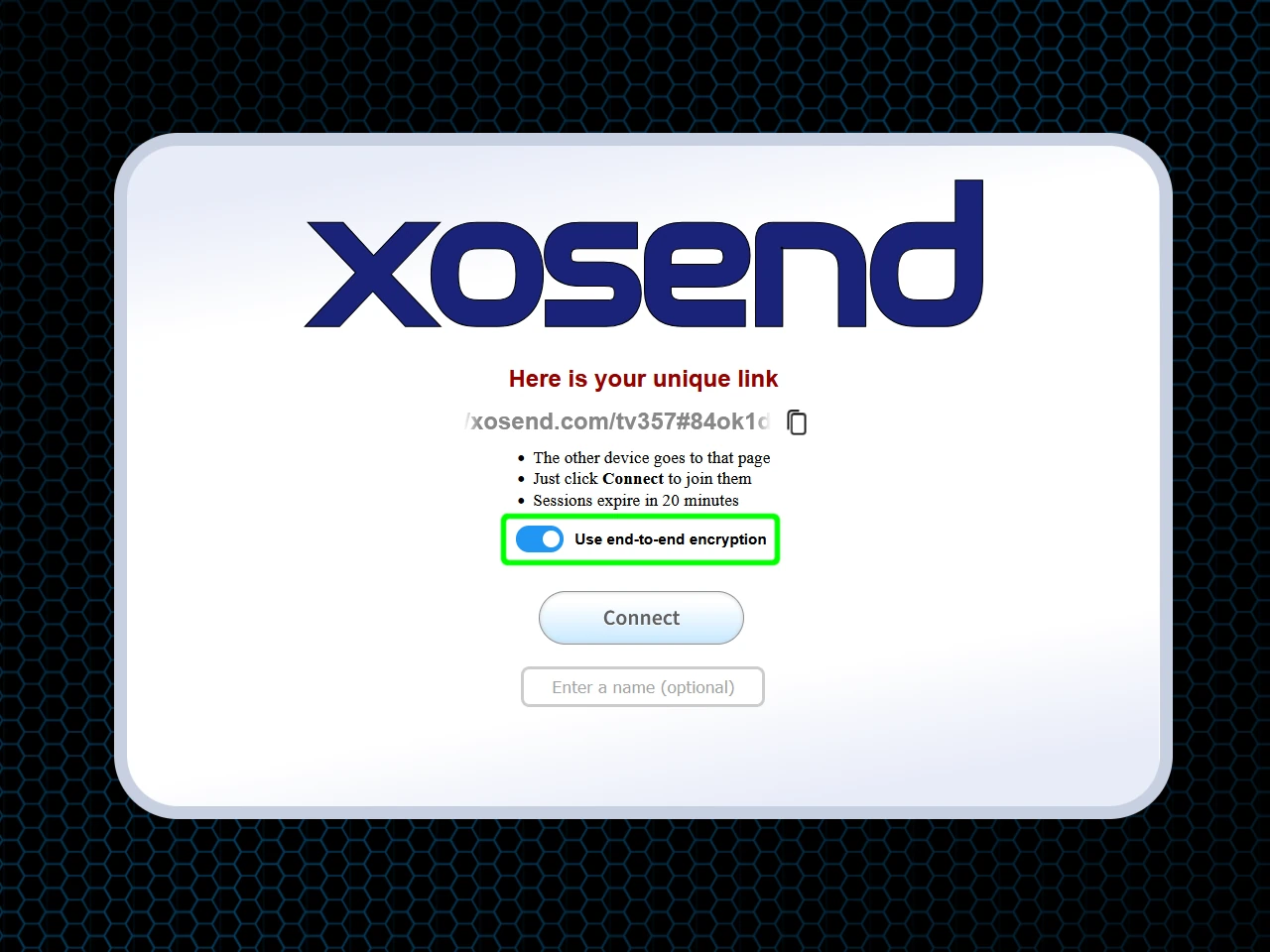
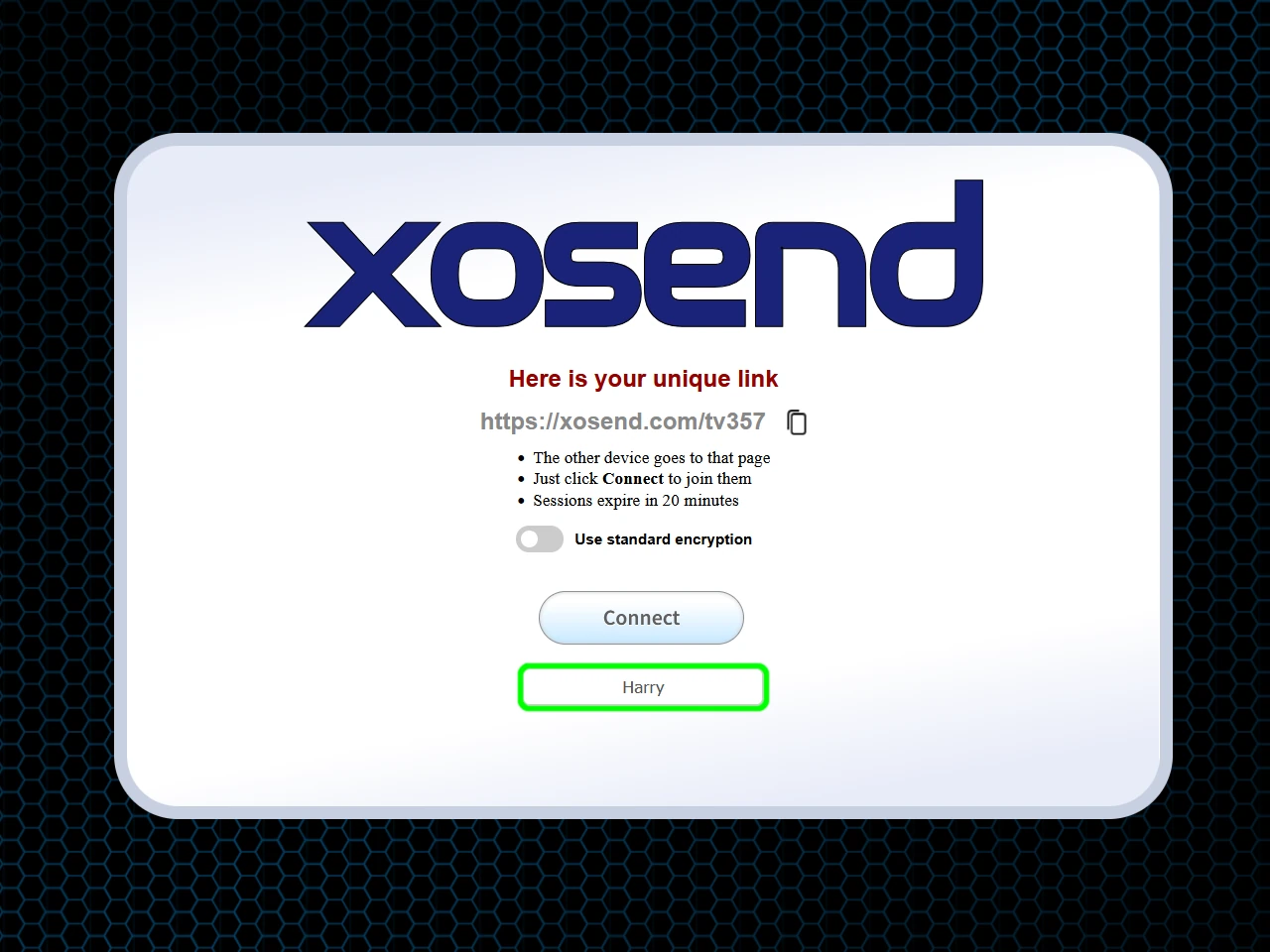
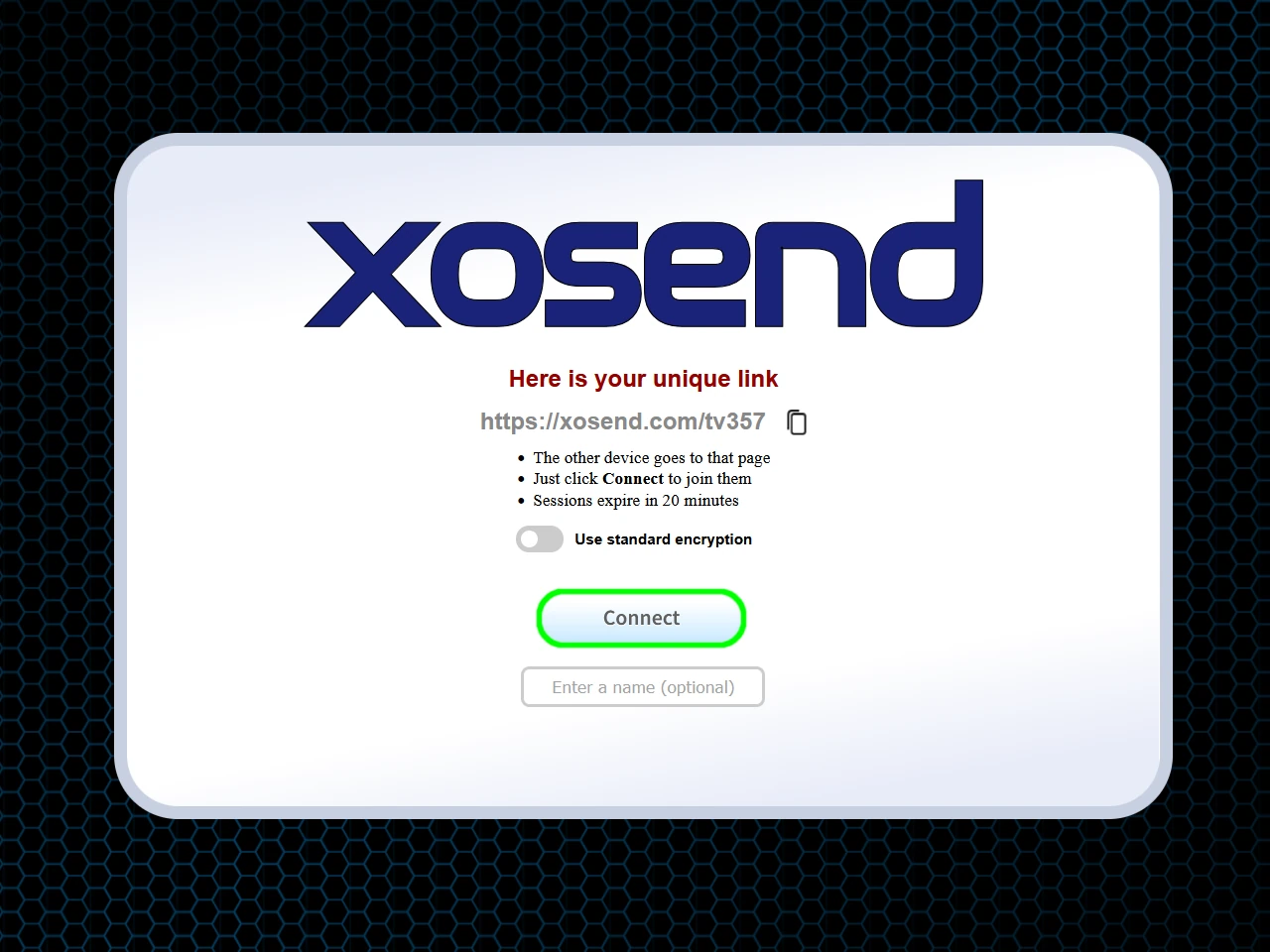
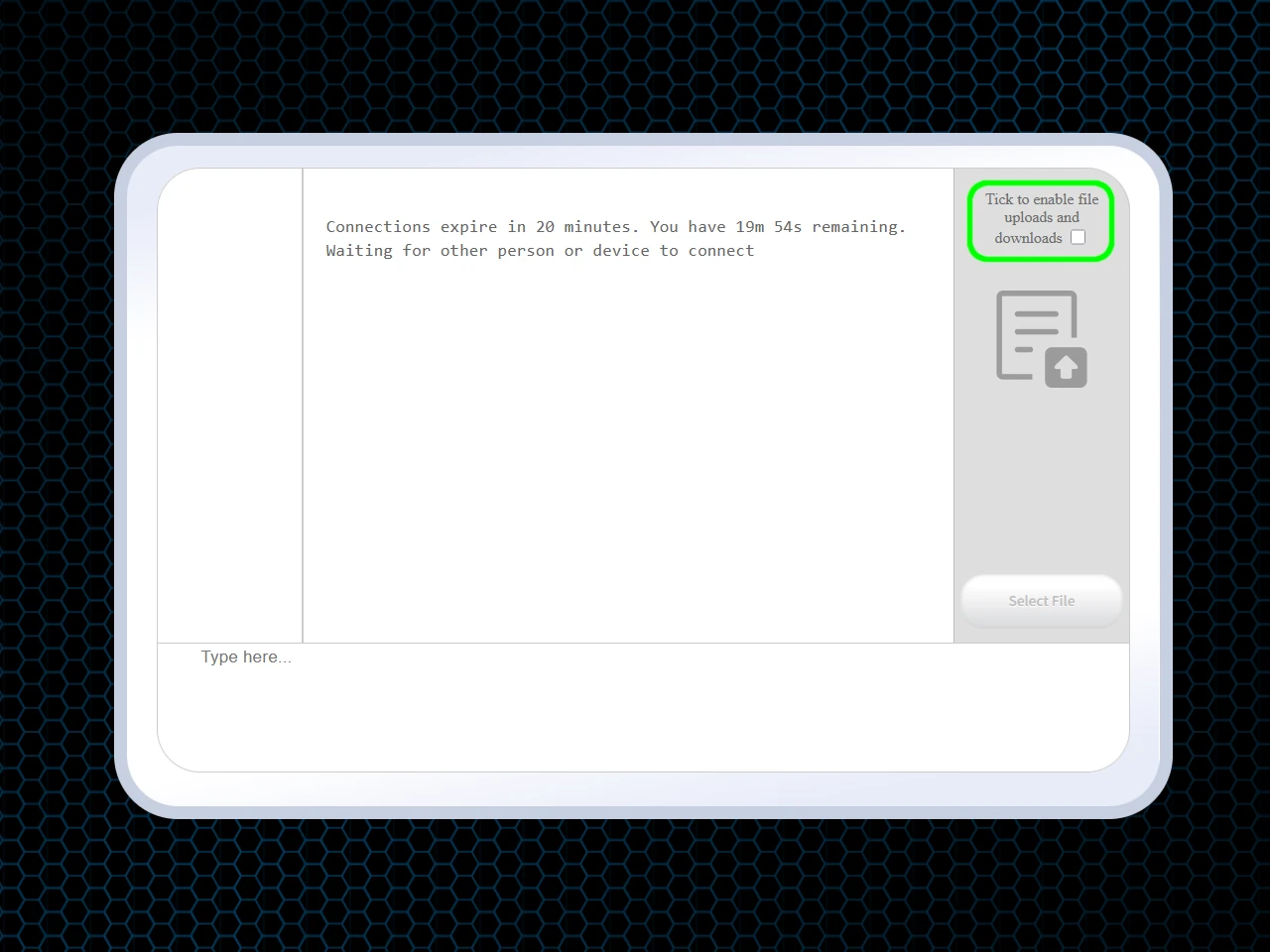
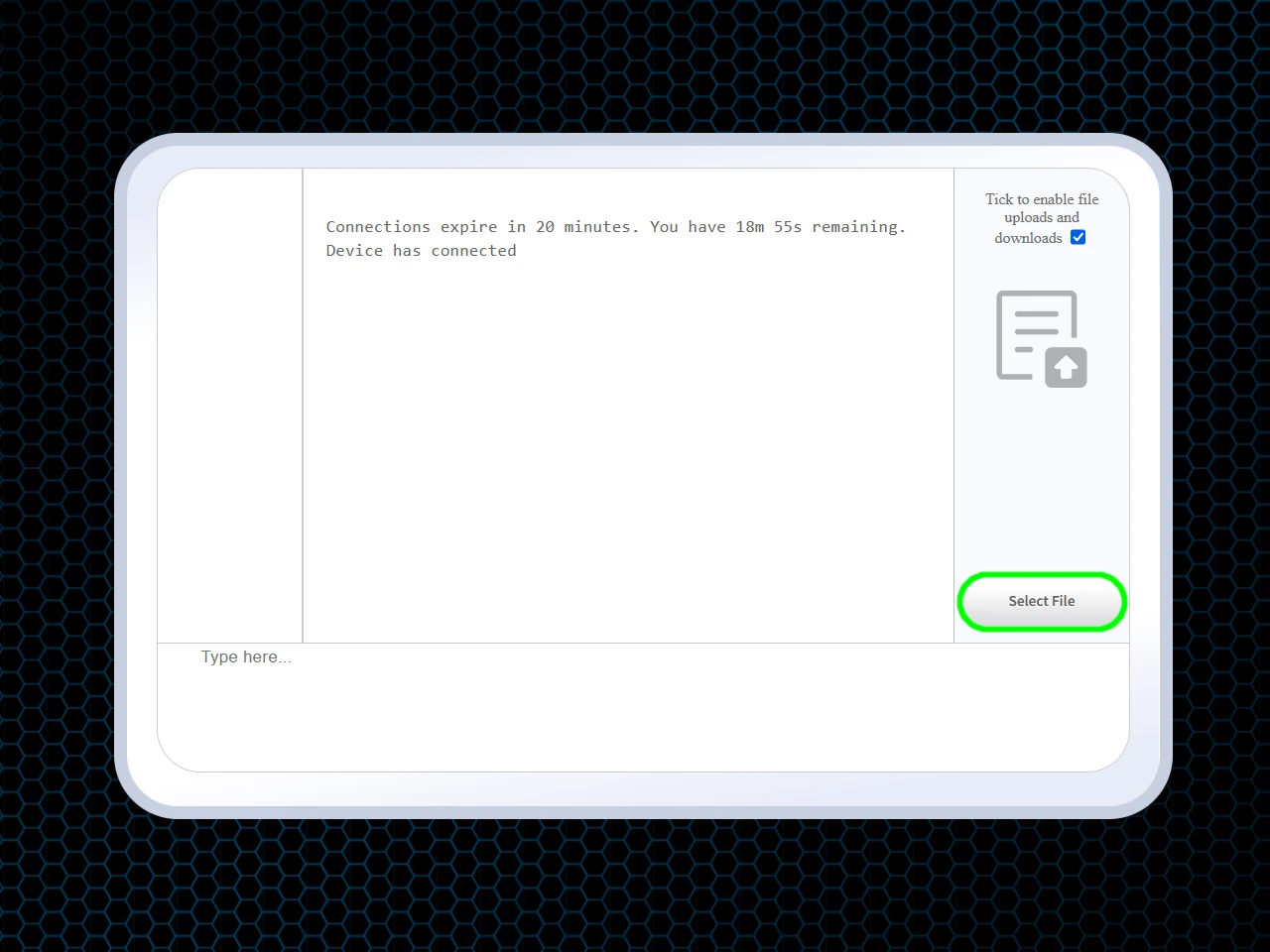
Using xosend for iPhone-Android transfers
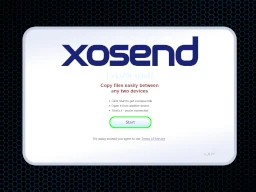
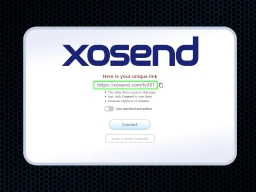
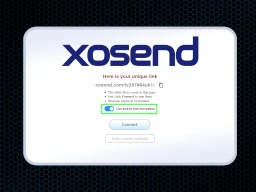
(Optional)
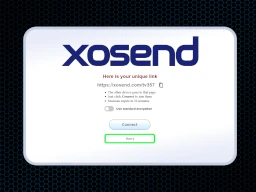
(Optional)
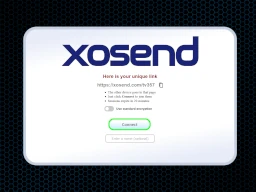
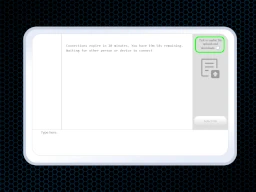
Frequently Asked Questions
How can I copy 4K videos from iPhone to Android quickly?
If both devices are on the same Wi-Fi network or connected through a fast internet connection, xosend can move 4K videos extremely quickly. It’s built around a high-bandwidth WebRTC engine that’s optimised for rapid transfers, so it's only limited by what your network can deliver.
There’s no throttling, no compression, and no cloud-upload delay slowing things down. When the connection between the devices is good, XOSEND simply pushes data through it as fast as the network allows, making it a very efficient way to move big video files across platforms.
How do I transfer photos from iPhone to Android without losing quality or changing file formats?
xosend transfers your files exactly as they are, ensuring you never have to worry about quality loss or format conversion. When you send an HEIC photo from an iPhone, it arrives on your Android device as the original, untouched file.
Because xosend acts as a direct bridge between your devices, it never compresses, re-encodes, or forces a format change. This means your photos arrive with the exact quality, resolution, and metadata you started with. Most modern Android devices support Apple's HEIC format natively, allowing you to open and view your images immediately without needing to convert them first.
Can I send files from an iPhone to an Android without using Google Drive?
Absolutely!
xosend transfers files directly between devices, either through a peer-to-peer WebRTC connection or, when that isn’t possible, through its encrypted relay server.
In both cases, the file goes straight from sender to receiver without being stored in cloud accounts like Google Drive, iCloud, or Dropbox. There are no uploads to persistent cloud storage; just a private, temporary transfer session.
More Ways to Use xosend
-
The LocalSend alternative that works online
You're not stuck with local transfers on xosend. It can transfer files online to any device.
-
Send files across any device or platform
Copying files between your phone and tablet is easy with xosend.
-
How to send files without WhatsApp
xosend makes it easy. You don't need an app or account, and it works on every device.