
How to Transfer Files Between Any Tablet and Phone
Transferring files between tablets and phones seems like a straightforward task. But with so many different makes and models around, moving a photo or document from your tablet to a phone can quickly become a little bit of a struggle.
Apple has its ecosystem pretty-well locked down, and Android devices vary widely in compatibility. This mismatch means users end up resorting to clumsy workarounds like emailing themselves or uploading to the cloud just so they can download it.
 xosend makes it simple with its browser-based solution that works across platforms, letting you send files directly between devices without worrying about distance, operating system, compatibility or account restrictions.
To transfer files between any tablet and phone, use xosend.
What Makes Tablet-to-Phone Transfers so Irritating?
- Incompatible platforms - Android's third-party protocols don't natively talk with the AirDrop/iCloud protocol iOS uses.
- Apple’s walled garden - iOS limits direct sharing with most non-Apple devices, forcing users into Apple-only tools.
- Cloud dependency - Workarounds often mean uploading to Google Drive, iCloud, or Dropbox, which adds extra steps and requires internet.
- Same-app required - Most solutions require the same app on every device you're sending to.
- Messaging compression - Apps like WhatsApp or Messenger downgrade photo/video quality, so shared files arrive worse than originals.
- Cable connections - Plugging devices into a PC or using Lightning/USB-C cables is fiddly, slow, and impractical for quick sharing.
Here are some more ways to quickly send files online.
AirDrop Support for Android is Extremely Limited
AirDrop was designed for Apple devices, and its Android support is minimal. Even when it is available, it requires strict conditions that most users don’t meet. It also has specific setup requirements that make it far from convenient.
- Newest devices only: Limited to select flagship models.
- Temporary settings: Users must set to “Everyone for 10 minutes” every time.
- Local-only start: Devices must be physically close to initiate.

Why isn't it Easier to Transfer Across Platforms and Devices?
The difficulty comes from how ecosystems are built. Apple prioritises seamless sharing but only between its own devices, while Android manufacturers each implement their own standards. These differences mean protocols don’t align, so cross-platform transfers are either blocked or heavily restricted. Security policies, account requirements, and reliance on short-range connections add further barriers. As a result, users are left juggling cloud uploads, messaging apps, or cables just to move a simple file between platforms.
Explore other ways to transfer files wirelessly between any devices.
How xosend Makes Tablet-to-Phone Transfers Easy
xosend overcomes all of these limitations by ensuring the same simple approach works no matter whether you're sending files from an iPad to a Pixel or Samsung phone, or from a Surface tablet to an iphone. The end result means that phone-to-tablet transfers are effortless.
- No ecosystem lock-in: Works seamlessly across iOS, Android, Windows, and macOS without restrictions. Unlike Apple’s closed ecosystem or Android’s fragmented standards, xosend does the same thing no matter what device you’re on. It connects them all directly, so you can move files between tablets, phones, and laptops without worrying about compatibility.
- Browser-based simplicity: No apps, accounts, or installations required; just open a browser and start sending. This means you avoid the hassle of downloading third-party tools, signing into cloud services, or dealing with permissions because transfers are instant and straightforward, even on borrowed or shared devices.
- Cross-platform compatibility: By ensuring that transfers work just as well between iOS, Android, Windows and MacOS as they do natively, xosend ensures that tablet-to-phone, tablet-to-laptop and phone-to-laptop transfers are fast, reliable and hassle-free.
- Smart routing: Uses local connections when available for maximum speed, and encrypted internet when they’re not. This adaptive approach means you get the fastest possible transfer in every situation, while still maintaining end-to-end security and avoiding the pitfalls of data-hungry fallbacks.
Features of xosend vs. other apps
| xosend | Other Apps | |||
|---|---|---|---|---|
| Cross-Platform Support | Works on any device with a web browser, across iOS, Android, Windows, and macOS. | Very limited cross-platform support typically tied to ecosystem. | ||
| Device Compatibility | Compatible with tablets, phones, laptops, and desktops. Accessible in seconds. | Most apps only work on specific operating system and devices. | ||
| Transfer Quality | Files retain full resolution and integrity; no compression or format loss. | Messaging apps and cloud services often compress files during transfer. | ||
| Ease of Use | Browser-based, app-free, account-free; just open and send. | Typically requires app installed and configured on every device. |
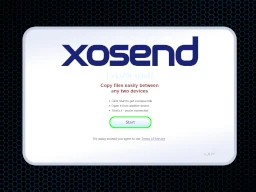
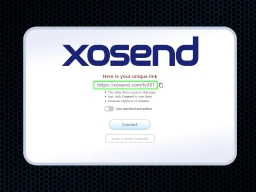
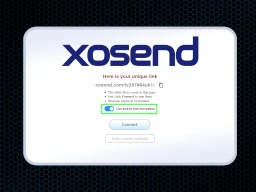
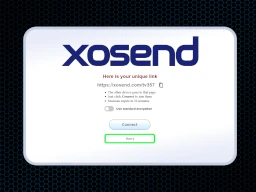
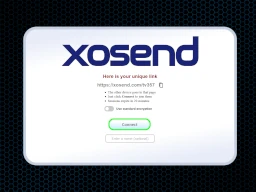
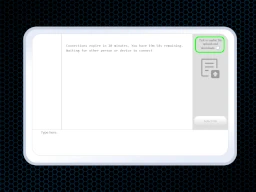
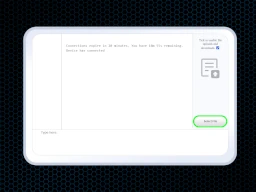
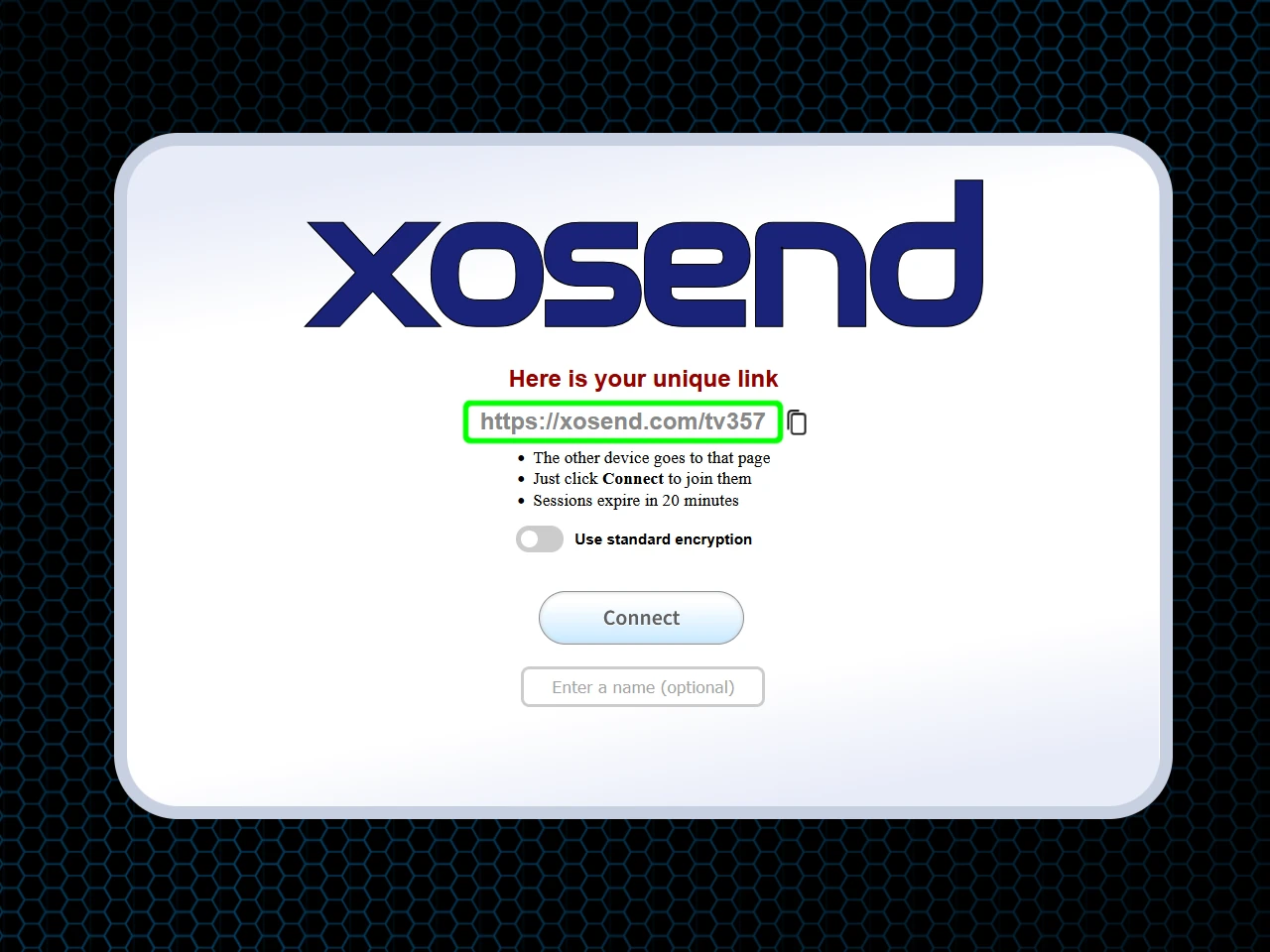
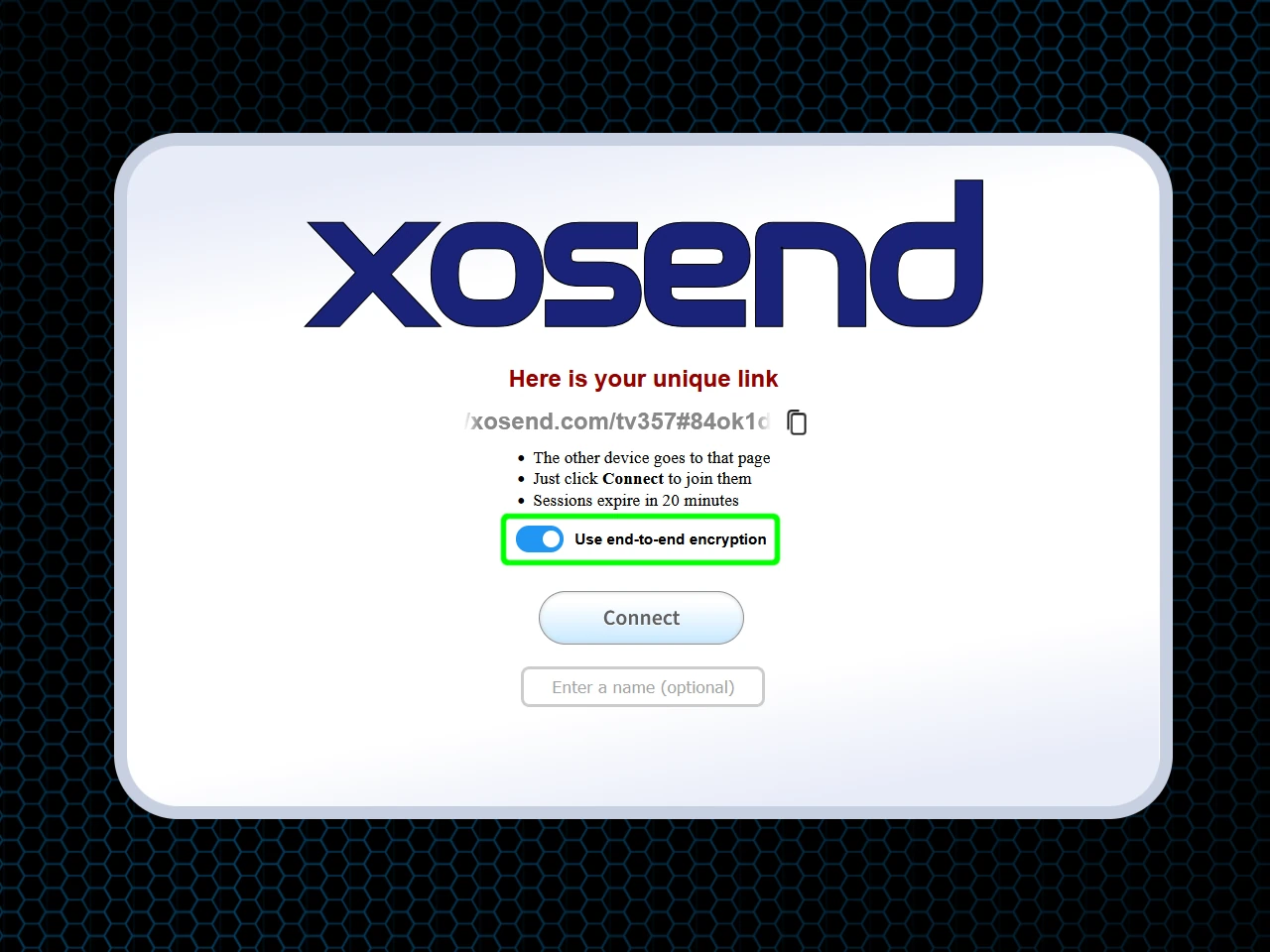
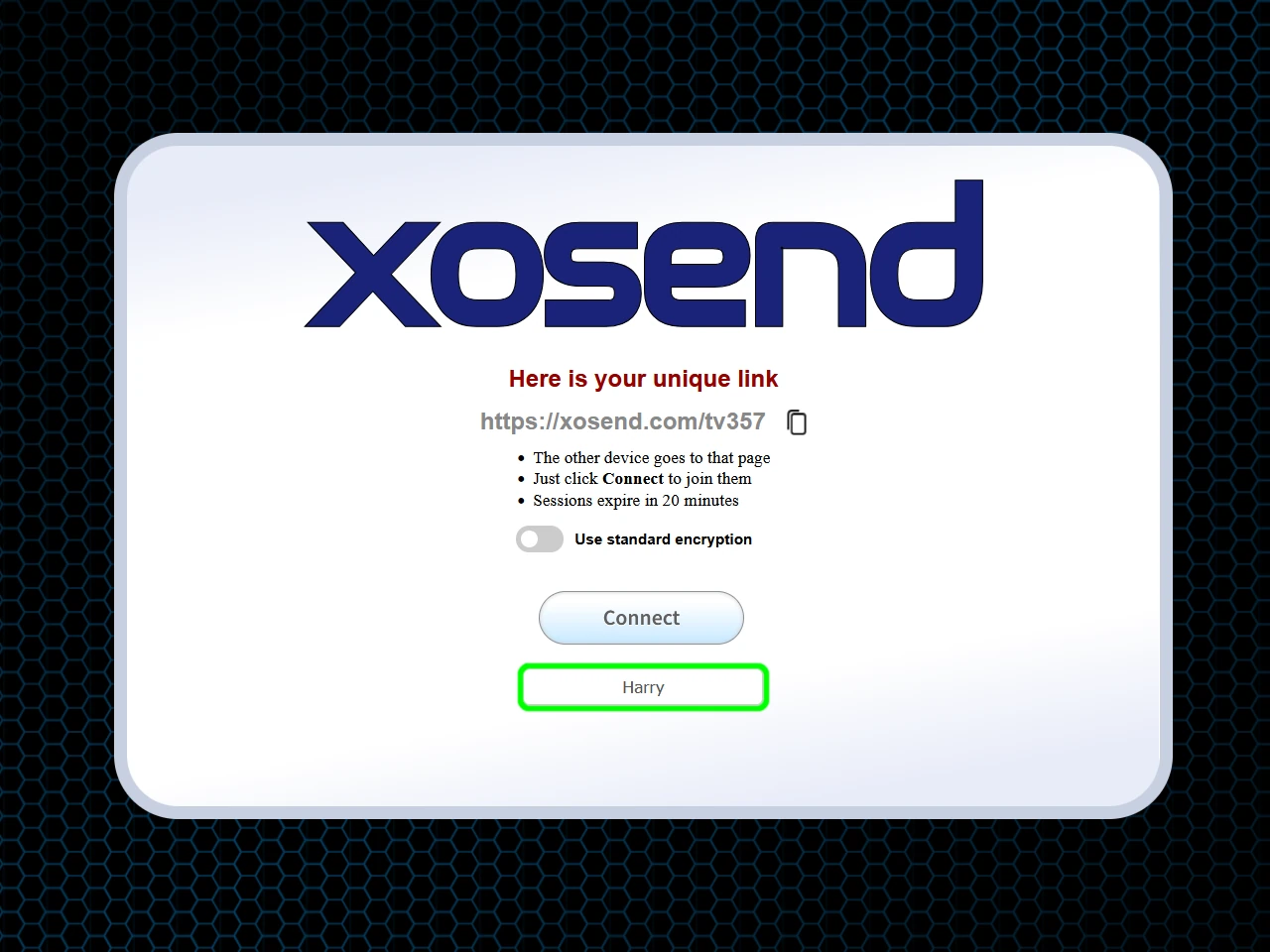
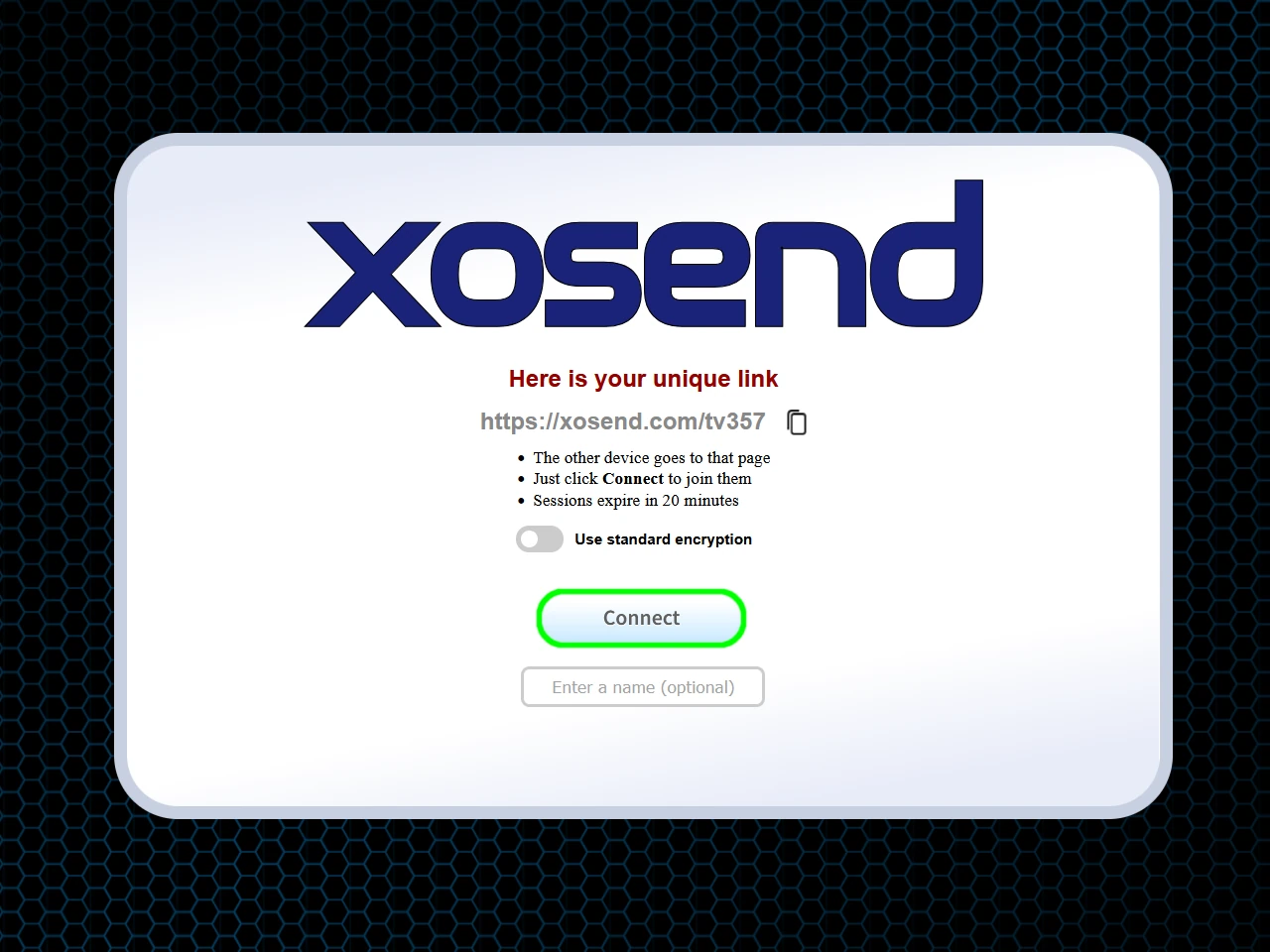
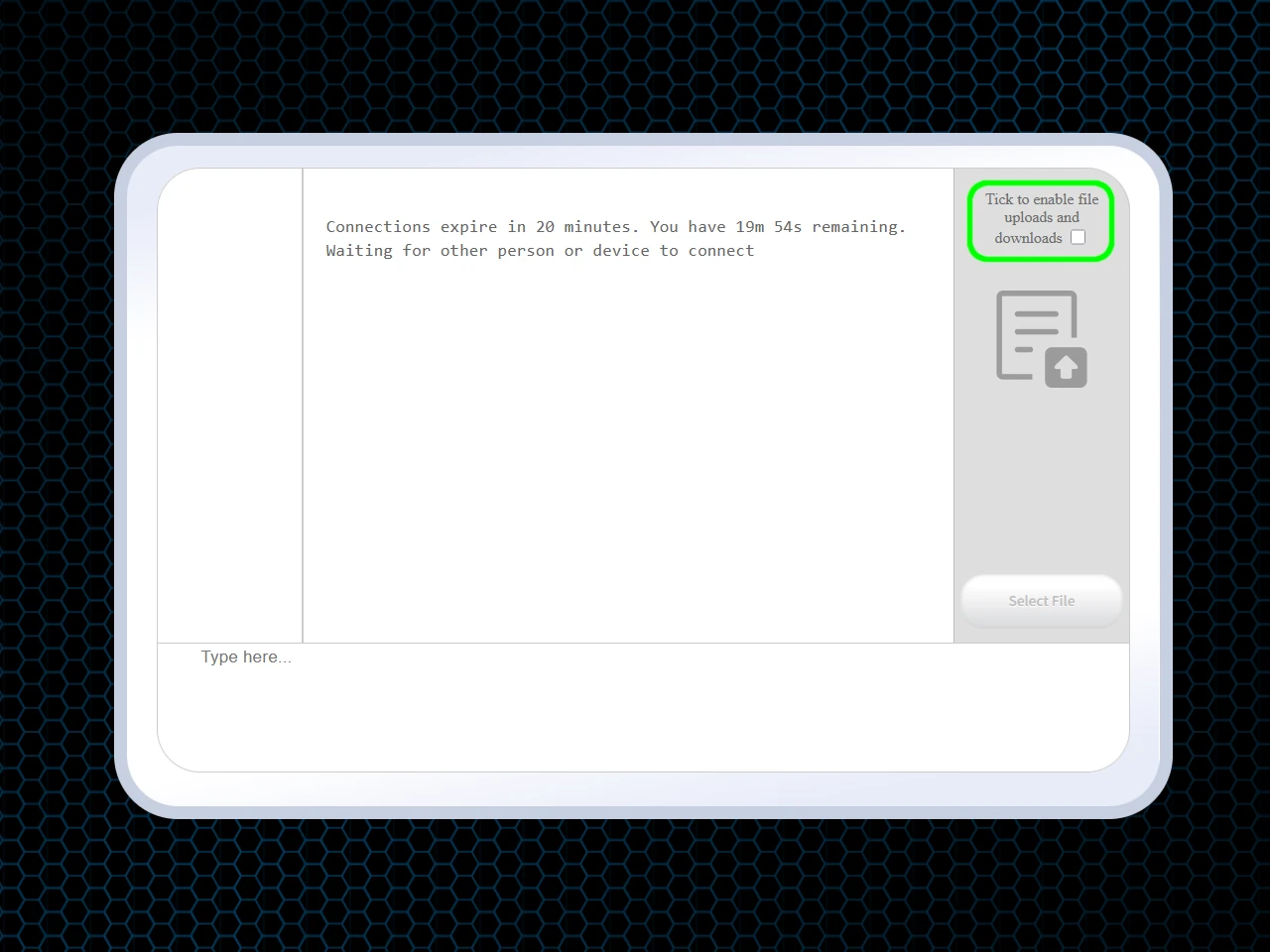
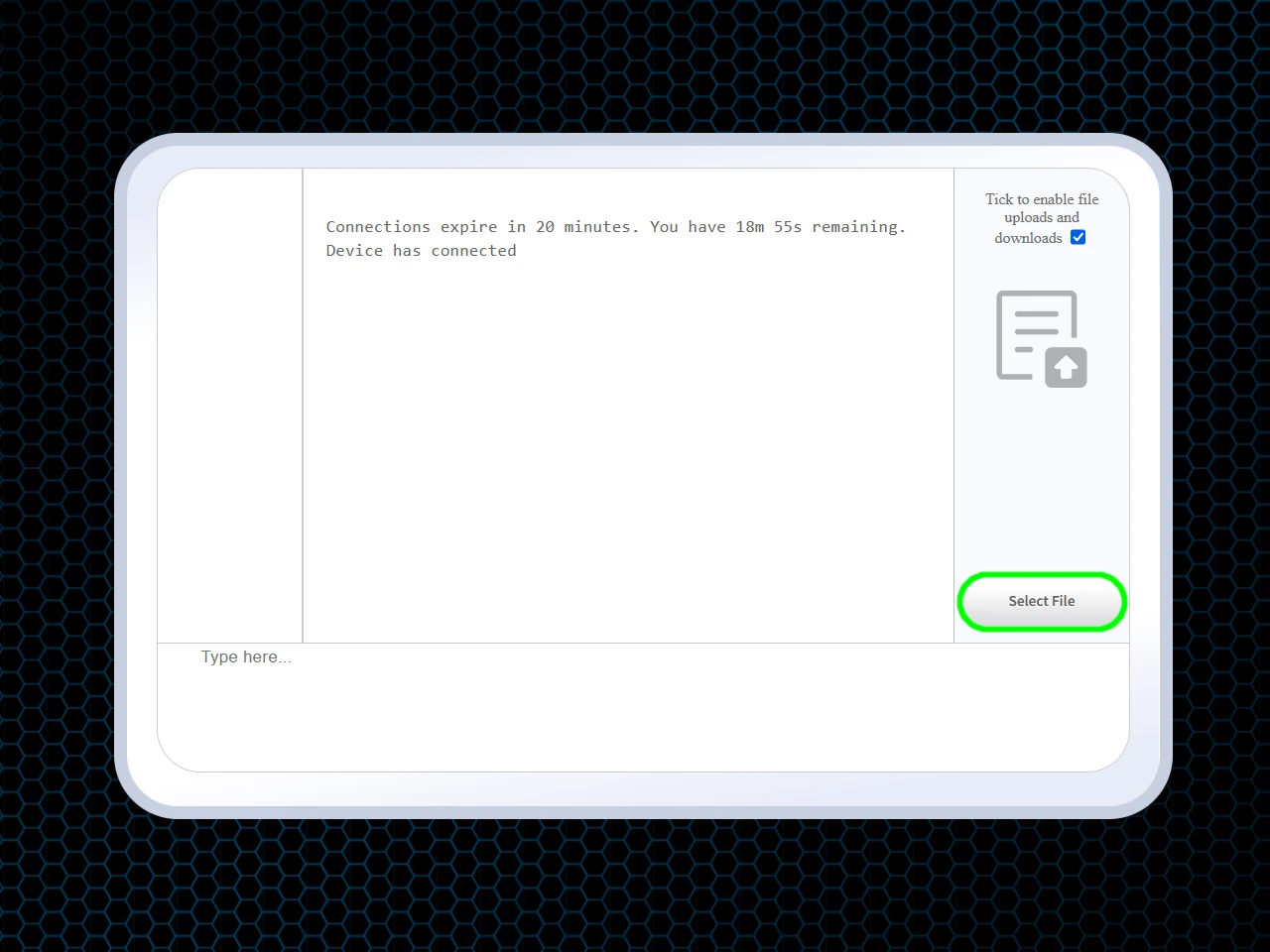
Tablet-to-phone transfers using xosend
Requirements: An Internet Connection and Any Web Browser (Chrome, Safari, or Edge).
(Optional)
(Optional)
Frequently Asked Questions
How do I send files larger than 25MB from my tablet to my phone?
With xosend. Most messaging apps and email services have strict limits for attachment. To send larger files, xosend allows you to bypasses app restrictions and supports files of any size. Simply open xosend.com to start a transfer, and your tablet can send videos, photos, or documents directly to your phone without compression.
Can I share files between devices that are on different Wi-Fi networks?
Yes. With xosend, distance and network differences don’t matter. Files are encrypted and routed securely over the internet if local Wi-Fi isn’t available. This means you can send files from your tablet at home to your phone connected to mobile data or another Wi-Fi network without issues.
Is there a way to send files directly to my phone without using Google Drive or iCloud?
Absolutely. Cloud storage isn’t required when transferring files with xosend. It lets you send files instantly without uploading to third-party servers. You just generate a secure link on your tablet, open it on your phone, and the select the files you want and they're sent directly. This means you skip any account sign-ins, storage limits, and privacy concerns associated with Google Drive or iCloud.
More Ways to Use xosend
-
Send files from iPhone to Android
Cross-platform file transfers are hassle-free with xosend and it works on pretty much every make and model.
-
How to send files without WhatsApp
You don't need an app or account with xosend. We don't need your phone number or a list of your contacts either.
-
Transfer files without a cable
Don't have the right cable to hand? You don't need it with xosend. Just two clicks and you're ready to go.